
| Component | Recommended setting |
|---|---|
| Internet Browser | Microsoft Internet Explorer |
| Operating System (OS) | Microsoft Windows 95/98 |
| Monitor Resolution | 800x600 |
Scroll down for instructions on how to make your computer fit these specifications.
Internet Browser
You can aquire this browser here. We also recommend that you set your text size to medium. You can do this by clicking on the "View" menu at the top of the screen and putting your mouse on "Text Size." Move your mouse to "Medium" and click on that. The reasons we use Internet Explorer are: 1) this site was designed using Internet Explorer and 2) some of the elements of this page only show up in this browser. Here is some information about the internet browser you are using:Operating System (OS)
We recommend that you use Windows 95/98 for one reason: this site was created with Windows 98 and therefore best viewed with it. To install this on your system, you will have to purchase it through Microsoft or another authorized retailer. Please do not do this if you own a Macintosh. This is not required, however. So if you have Internet Explorer, this site will turn out just as well on Mac as it will on Windows.Monitor Resolution
Again, this site was designed using 800x600, therefore best viewed with it. To change the resolution in Windows, move your mouse to the "Display" icon on the taskbar on the bottom right-hand corner of your screen. Using the right side button of your mouse, click on the icon. Move your mouse to where it says "800x600 True Color (32-bit)" near the bottom.
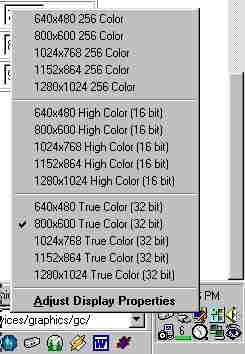 |
Click on that. A message may come up and ask you to restart your computer to apply the changes.
I have found that this is not necessary, but it returns the best and safest results. In
other words: your choice. Also, if you found this method difficult or impossible,
you can also try another way. Click on the "Start" button. Move your mouse to "Settings."
Then click on "Control Panel." When this opens, click on the "Display" icon.
It should start on the "Backround" tab. Click on the tab all the way to the right, otherwise
known as the "Settings" tab. Move your mouse to where it says "Screen Area" and move
the bar until it reads: "800x600 pixels." Click either "OK" or "Apply." Again, a box might
pop up, and again, it is your choice. If you have any questions, comments, or something to add, email us! (Please add a subject line of: Site Specifications) |